Support our sponsors

Friday, August 14, 2009

Pro Tools videos

A few days ago, I uploaded some tutorials, presentations and demonstration on Pro Tools to YouTube. Below you can watch those videos in the playlist I've created for you.

Saturday, July 11, 2009

M-Audio Torq review


Reviewed using Torq Version 1.0.3

TORQ's Browser

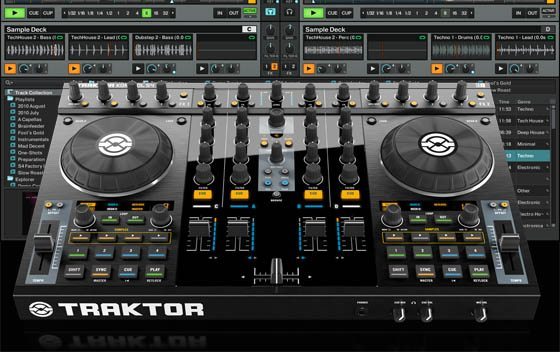
The Xponent is what you touch- it's the tactile interface. What's under the hood is the Torq software. It's a beautiful thing, how well the Xponent is configured to work with Torq- the excellent match keeps you playing, and spending less time pecking a computer. Still, one way or the other, you are going to have to get to know Torq, the software. And you are definitely going to have to deal with Torq's browser.

Bluntly stated- Torq's browser is a pain. If you have a big song library and have spent the hours required to properly tag it, you'll find that Torq's browser will not see the key information. It is also commonplace to have the browser hang for several seconds while you search it. Not a huge deal at home, but on the job it will make you extremely nervous. All I can say is don't wait until the last second to choose your next track. Also, the browser isn't able to be customized. Say you don't care what album a song comes from, and don't need to see that info- well, you can't tell that column to hide. Torq is innovative in so many ways, offering features that even the most expensive units haven't implemented yet- it's a shame to see it fall short in an area as fundamental as a browser. Even with the headaches, Torq/Xponent does so many things well that I can put up with its bad browser. If they don't make the effort to improve it with software updates I will be extremely disappointed.

iTunes is the salvation for the Torq browser. Torq easily recognizes your iTunes database. All the playlists you make in iTunes are quickly accessible in Torq, and it's a lifesaver. And no, you don't have to use iTunes songs to use iTunes software. I don't have a single iTunes song in my library and it works flawlessly. For the record, my files are mp3 from Beatport, WAV files from my record pool, and WAV files ripped from my vinyl collection. Aside from WAV and mp3, Torq will read AIFF, WMA, AAC, and Apple Lossless files. Any decent MP3 tagging program would be better for managing files than Torq's browser, and I find that since I use a Macintosh, it makes the best sense to use iTunes for tagging. My favorite approach is to make custom playlists in iTunes because they are easily and immediately recognized in the Torq browser.

Since I've bashed the Torq browser, let me go a little deeper to explain. Torq, like Live, Acid, and many other audio programs, needs to analyze every file before it can work with it. Each time Torq analyzes a file, it creates its own proprietary file to hold information such as: waveform, cue points, beatmapping information, and tag information. This is a tiny file, and it is created and saved right alongside the original audio file when Torq analyzes a song. It's where the 'magic' is stored, so Torq can work its wonders. So we love- and we hate it. Why? Because this teeny file holds the tag information: Artist, Title, BPM, Key, Comments, etc. And if you've added thousands of files to Torq, then you have thousands of these teeny Torq files. If you update a tag field in hundreds of your songs, after you've added them to Torq, using either iTunes or another MP3 tag program, then Torq will not recognize those updates. See, Torq has already written the small info file for the songs and as far as Torq is concerned, the info in those tiny Torq files are the last word for file information. Even though you just updated comments to 700 of your songs.

The only solution is to ask Torq to reanalyze the files whose tag info you changed. And before you do that, you have to throw away the original tiny Torq file (it's suffix is always .tqd) therefore losing all your cue points and beat grid info. It's one of the reasons people scream in the night. If Torq's browser was good for bulk updating tag info, then this would not be an issue. But Torq is horrible at bulk management of tags- it demands you to update one song at a time.

So, before you add songs to Torq, make sure the tag info is as complete as possible. Changing tag info after the fact is a royal pain. And, since Torq so wonderfully integrates with iTunes- use those iTunes playlists to keep yourself organized. Also of note- Torq can't play iTunes files with DRM. It can play the iTunes Plus files, because they don't have DRM. This isn't Torq's fault, it's DRM's fault: DRM limits your usage of a file. And, as of late, DRM is on the way out.

Sync and sample

Once Torq has analyzed a song, it does a pretty good job at beatmapping it. As with all beatmatching programs, Torq doesn't get it right every time. Fortunately, Torq makes it easy to adjust for any inaccuracy via manipulation of the beat grid. You have a visual waveform with a grid overlay that is supposed to line up on the waveform beats. If it doesn't, just hold down shift (there is a special shift key on the Xponent) and use the jog wheel to get the grid aligned. I really like the tap tempo feature. It's for songs that can't be beatmapped and works wonders for quick beatmapping of acapellas. Once you have the beat grid right for any given song, Torq has a button called 'Sync" that will allow songs to be mixed in time with each other, even taking into account the down beat. It's really nothing new- Acid and Ableton Live have been doing it for years. Torq, however, has made it a little easier in the DJ booth. You will still need to know how to beat match in order to correct Torq when it goes astray. And, you don't have to use it if you don't want to. There are 3 modes for Sync: Bar mode lines up the beats and the downbeats; Beat mode lines up the beats, ignoring the bars; and Tempo is a manual mode. It's comforting to go manual and keep everything tight the old fashioned way.

The nudge buttons, jog wheels, and pitch sliders work very well. At times the Sync feature is great to when you get into looping and effects. It's all good, and not as automatic as some would have you believe. Even if a track looks properly beatmapped, your ears may tell you otherwise, and you'll need to be skilled at hearing this and adjusting for it. You can hit cruise control on the highway, but that doesn't mean it's time to take a nap. Some purists seem quite upset about this so called "auto beatmatching" feature. In the same way some painters used to think photography was sacrilege, or some people were afraid of electricity when it was introduced.

Torq has a 16 cell, tempo-synched sampler. It plays loops and/or one-shots and syncs to Torq's master tempo. You can trigger the samples from the Torq software screen, or an external controller such as a MIDI keyboard. Play melodies, drums, vocal phrases... whatever you like- either by hand or triggered in sync with the mix. If you're using Torq with Connective (where you use timecoded vinyl to control your files) you can play your samples from the control vinyl. Instant party trick: record your voice and start scratching it as a sample with some timecode vinyl.

Effects, VST, and ReWire

Torq has 10 built in effects that can be manipulated via Xponent. Each channel in Torq allows you to chain up to 3 effects. The delay effect allows a user to adjust the delay time by tapping a button. Very fun. The brake effect simulates a turntable being powered off. The strobe effect is a rapid rhythmic gating effect similar to yes, a strobe light, but in sound. The reverse effect instantly reverses any section of music while still playing it in time, meaning the user can reverse sections without losing relative position in the timeline. Perfect for obscuring vocals while staying on the beat. All effects have knobs and buttons and can also be manipulated using the XY trackpad on the Xponent. This is all great implementation of effects on a DJ console at any price. In keeping with the spirit of the Xponent, everything is hands on and a tweaker's delight.

Torq hugely expands effects possibilities with VST effect compatibility. Xponent allows control of VST parameters with its effect knobs and buttons, bringing into play a battery of possibilities beyond the scope of this review. To be honest, I haven't scratched the surface of this yet. VST support is one of the features that sets Torq apart from the pack. The large selection of professional VST effects and free online VST effects means the user has hundreds of effects options. Torq has a feature called "VST crash guard" that allows Torq to keep smoothly running even if a VST crashes, so people can try out the oddest homemade VSTs they can find online without fear of a buggy VST taking out their set.

Rewire support is another open-ended feature of Torq, and allows any application supporting Rewire to run in tandem with Torq- opening up a world of MIDI programming, soft synths, and hard disk recording. I have just begun running Ableton Live 7.0 in the background just to see if it works- and yes, it works! Your imagination is the limit here- one fun thing to try is playing one of Ableton's virtual instruments along with your songs. With Ableton Live's new instruments and sounds, you have a massive sound library to play right out of the box. Use the recommended computer requirements instead of the minimum requirements if you want to run lots of VST and programs like Ableton Live in companion with Torq and Xponent. Of course, you may elect to simply play one song after the other, but you will always have a powerful and compact production studio if you want it.

Wednesday, June 17, 2009

Technics SL-1210 M5G

Summary:

It's my opinion that 1210MV5MG and its predecessors may be favored by DJ's around the world, but this particular version is a serious piece of audiophile gear. There's plenty of information on the web and specs, so I'm not going to focus on that, but I do have quite a few impressions of this refined beast.

I dare say it appears to me to one of the most technologically advanced turntables in the world that is within the reach of the average consumer. The motor and platter assembly are absolutely incredible. I don't know if this is accurate, but it looks to me that the motor and the platter are magnetically coupled, meaning the motor has no physical connection that I could see to the platter. If that's the case, that would put this table in same league as air drive systems. Hopefully other reviewers can shed some more light on how the drive system works.

It's also a very ergonomic and user friendly machine. Now I know lots of people love to fuss with their TT's, make adjustments, make it a somewhat of a ceremony to play a record, that's cool with me. I have no issues with people deriving enjoyment from spending their money and playing with their gear. But I have to say, this turntable is blast to use.

You're up in under 1 second and the speed is dead on. I'm even having fun playing with the slider and reviewing some passages at slower speeds. Back to perfect speed at the touch of the reset button and you don't have to account for stylus drag. Hell, you can brush the record while it's playing. The rubber mat is outstanding with a slight depression for the underside of the record label. I'm using a lighter stainless steel Clear audio clamp and set-up was also achieved with a Clear audio aluminum protractor jobber thingy.

The integrated lighting is a welcome feature. A red LED hitting the strobe mirrors is neat, but the blue pop-up LED that lights up the stylus is straight out of James Bond! Impeccably cool!

There's a lot of great tables out there, but I just couldn't pass this one up given it's most critical attribute: THE SOUND! Forget about price for a moment and ponder that to these old ears, the presentation in terms of sound stage, speed, decay, ambiance, and the void of space where sounds emerge from this machine provides is anything but entry level. I hope you'll agree and get one before folks here in the USA realize what they've been missing.

Strengths:

  • Perfect Speed Accuracy
  • Super quiet black "void of space" background.
  • Gimbaled tonearm, and I like the retro look.
  • High quality tonearm cable on this model.
  • The slider is a cool feature if you like to change the pitch or review a passage at slower speed.
  • Swapping cartridges is a snap with multiple headshells and accurate markings.

Weaknesses:
Would like to see subequent versions allow for greater flexibility and ease in swapping tone arm cables, tonearms, updating power supplies, and the like. Not that you can't do it now, but it takes more effort and knowhow.

Thursday, May 28, 2009

Akai MPK49


and music production keyboard, the MPK49 comes pre-stocked with Ableton Live Lite Akai Introducing the superpower music production tool from Akai, the MPK49. With all of the latest heavyweight features combined in a USB/MIDI controller keyboard for music production, the MPK49 is fired up and ready to go. Its sleek design, durable 49-key semiweighted keyboard, 12-pad control surface, wide blue screen, sliders, knobs and pitch bend/mod wheels all add to its appeal. As a combination controllerEdition software compatible with Mac or PC and is worth having in any studio environment.

HYPER CONTROL

On power up, the MPK49 displays a fluorescent blue backlit screen with a wide viewable area, which is bigger in size compared to the smaller MPC500 drum machine. The workstation is compact with the drum pads, keyboard, wheels, sliders, knobs and buttons all positioned within easy reach. The full-size keys have a semiweighted action that is smooth and easy flowing. The MPK49's 12 pads can be used to trigger as many as 48 sounds from within the assignable four banks (A-B-C-D), sustaining the same velocity and sensitivity action as the MPC500 sampler. In Full Level mode, the drum pads play back with maximum velocity (127) regardless of the amount of pressure that you apply. I have extensive experience working with MPC drum machines, so using the familiar Full Level function on the MPK49 was a nice choice, letting me use the full dynamics of my drum programming. To work with the different velocities of the pads, there is a 12-Level function that allows you to actually adjust a sound's velocity in 12 different steps. That is a handy feature when using a software program because you can embellish and build character to your sounds. One of the best parts of programming drums on the MPC is the infamous Note Repeat, which rolls a sound in repetition while the producer holds it down — a feature Akai also added to the MPK49.

The standard pitch bend and modulation wheels are on the left side of the keyboard. To the right of those, in the Performance Controls section, lies the built-in Arpeggiator, which was a real treat for giving me extra dynamic handling when I used my favorite Propellerhead Reason software patches. Things get even better with the Latch button activated. When using the Arpeggiator and Latch button in combination, the unit will sustain any keys that you strike, so you can tweak the sound while creating your music. After you play around with the Arpeggiator, you can quantize your notes and mess with your timing with the Time Division feature. The different timing options available there are ¼, ¼T (triplet), ⅛, ⅛T, 1/16, 1/16T, 1/32 and 1/32T. When I used this feature, the timing changes were accurate, and they can be applied equally well to instrument notes and drum programming.

The main control section on the right-hand side of the MPK49 consists of eight knobs, eight sliders and eight buttons, which are all assignable to four Banks (A, B, C and D) for a total of 32 assigned knob commands, 32 assigned slider commands and 32 assigned button functions. In all, that's nearly 100 assignable MIDI controls, which represents a ton of potential. When programming drums, the assignable buttons specifically set the Time Division values of the Arpeggiator and Note Repeat. Below the LCD, the five transport buttons help take control of a software sequencer's playback.

GOING DEEPER

The MPK49 comes with four main operation modes: Preset, Edit, Global and Program Change. In Preset mode, you can load, save and copy as many as 30 presets in the internal memory, as well as save all of your custom configurations, so you can quickly load the templates you need to use while producing without having to reprogram the unit each time.

In Edit mode, you can edit the configuration of the MPK49 by making functional changes to the keyboard, pads, knobs and sliders. For example, you may want to have a slider or a knob transmit only specific MIDI data, or you may want to have a pad that transmits play, record, stop or any number of other MIDI channel functions. This Edit mode has no limitations; it's a powerful tool for customizing your setup.

In Global mode, you can set parameters that will change how the entire MPK49 functions. For example, you can change how the pads respond to aftertouch or change the brightness of the LCD. Other adjustable parameters include controller resets and pad response curves.

In Program Change mode, you can transmit various Program Change messages that will tell your DAW or another external device to switch to a different program bank of sounds. By using this function, I avoided having to manually switch between different programs on my DAW and external device, such as an MPC2500. In addition to editing manually from the MPK49, the unit ships with Vyzex software, a stand-alone editing program used for editing all of the above-mentioned settings from a computer.

I use keyboard controllers for various purposes, one of which is to play instrument patches from my external sound modules, so I thought it would be really cool to control my MPC2500 solely with the MPK49. The first thing I wanted to do is have the MPK49 control all of my transport functions on the MPC. I chose a generic preset on the MPK49 to start the process, but I had to make some adjustments to the MPC in order for it to work. First, I opened up the MIDI/SYNC page on the MPC and set the Receive MMC to On. Secondly, on the MPK49, I selected Program Change, and then scrolled to the Send MIDI page. There you can play with all of your different MIDI settings, such as MIDI channel, program numbers, bank options and more.

STACKS IN THE BACK

The MPK49 can be powered up using an optional power adapter or via USB bus power. When the MPK49 is powered through the USB cable, it disconnects the communication between the independent MIDI Out port of the unit, so if you are trying to trigger sounds from another MPC drum machine or another MIDI sound module, you will have to purchase the optional AC adapter. The MIDI In and MIDI Out connections can send and receive MIDI data to and from your computer, or they can also be set up to send MIDI data from your computer to a device attached to the MPK49's MIDI Out port. There are also Sustain Pedal and Expression Pedal connectors for additional control via optional footswitches.

NO DOUBT

I always have high expectations for my gear, especially when it comes to keyboard controllers and drum machines/samplers. Anyone who has built their foundation using the Akai MPC series will appreciate the signature drum pads, keys and sliders that make this a superior controller. I am definitely sold on the Note Repeat feature, which no other keyboard controller has. Using the arpeggiator along with Reason and Apple Logic Pro 8 inspired me with the creative drive to go deeper into my ideas. One small beef I had was that although the MPK49 has a nice wide screen, it doesn't always auto detect software devices that are active. For example, as I scrolled through Reason's different devices, the controller did not display all of them on its screen.

Still, the MPK49 is a really hot piece of gear to own if you plan on doing hip-hop or another type of sample- and beat-driven music. Anyone using MIDI sound modules or samplers will get hooked on this controller as well. The learning curve is a bit difficult at first, but once you set up custom configurations, it's smooth sailing from there. As a combined keyboard controller and drum pad controller, I have to say that the MPK49 is the best feeling controller keyboard yet.

Pros: Compact workstation design. Important features brought over from Akai's MPC series, such as Note Repeat and MPC Swing. Arpeggiator and Time Division features. Aftertouch on the pads and keyboard. Bright LCD screen. Great feel and fun to use.

Cons: Automapping for older software isn't available. Single button to toggle from the different banks. Controller drum pads lack fatness of MPC drum machine pads. Power adapter sold separately. No On/Off power switch.

Contact: www.akaipro.com

Wednesday, May 13, 2009

M-Audio Session Music Producer


Session Music Producer is a USB microphone, designed for home music production. The fact it works via USB makes it more attractive to more amateur musicians, because there is no need for any audio interface. But it is USB, it works like any other device, like printer, digital camera, or flash drive. Microphones are supposed to work like microphones, through XLR cable.

Overall sound quality is pretty good, with the included drivers you can set gain of the main output on your computer. Another thing that is pretty good, is that there is headphone output on the front of the mic. No need to run cable for headphones from the computer. There are however few bad thing about the microphone, included with it is pretty short USB cable which does not allow you to record vocals or guitar far enough from the computer, so we can't hear the computer fan on the record. Buying longer cable will definitely solve this problem. With the mic, there is also included small mic stand (approximately 4 inches) which is enough if you put it on some sort of desk.

Microphone works pretty good even after a couple accidental drops on the floor. I really recommend to buy it if you are just starting producing music at home.

M-Audio Fast Track PRO audio interface review


M-Audio Fast Track PRO is better version of Fast Track USB, with more capabilities, but it is still designed for home or tour recording. It has 2 mic inputs on the front, either XLR or TRS, 2 line inputs on the back one S/PDIF input, 4 RCA outputs, 2 TRS outputs and S/PDIF output. You can also find MIDI In and MIDI Out on the back. Having 7 outputs you can mix in 5.1, or 7.1, which is good for film score production. It connects to computer via USB, and you can plug in your headphones via 6.3mm Jack plug. On the back you can also find ON/OFF switch.

With the interface M-Audio included Pro Tools M-Powered DEMO, Ableton Live 6 Lite, and a CD with drivers. Included drivers do not work with Windows Vista, so I had to download new ones form M-Audio's website. After installing the device you can choose what audio goes through it with ASIO driver, which is available for free download from ASIO4ALL.com.

One of the pros for this device is its price, only $199, and compatibility with Pro Tools. However, one of the cons is, that full version of Pro Tools is not included. But if you would like to buy DigiDesign's interface (which comes with full version of Pro Tools LE) with the same capabilities, you'd have to spend around $700.

If you have a condesner microphone - no problem - Fast Track PRO has 48V phantom power, which you can swith on/off with dedicated switch on the back. Fast Track PRO works great with applications I use (Pro Tools, FL Studio, Adobe Soundbooth, Adobe Audition), but after using it for a while, the driver crashes and no sound comes out of it. Usually restarting the device helps. Also, the driver is very easy to use. I really recommend it for everyone.

M-Audio Fast Track USB audio interface review


M-Audio Fast Track USB is the cheapest audio interface to be compatible with Pro Tools M-Powered, it costs $129 on M-Audio's website. It has one mic input (XLR, but in the manual it says it is only for dynamic microphones), and one line-in input on the back of the device, which is good for guitars. Also, on the back we can find 2 RCA outputs (left and right) for studio monitors, and USB connection to a computer. On the front, there is also headphone output.

Included software (Session) is not good for anyone, who creates beats. I'm sure some people who play guitar would find it useful, but not me. With the Fast Track USB also comes a CD with drivers, which in fact worked on Windows Vista Ultimate SP1 32-bit, but didn't work with Pro Tools M-Powered 7.4. I had to look for newer drivers on M-Audio's site, and I found out that there are two identical devices from M-Audio, one of them is said to work with Pro Tools, other one - no. It was Fast Track Session USB ($129, on the website it says it should work with Pro Tools) and Fast Track USB with Session ($99, didn't say the same), which is the one I bought. I doubted that this device could work with Pro Tools, but it turned out that both devices can work Pro Tools. I guess just the more expensive one already has drivers for it.

The device is working good, however it's lack of phantom power limits me to using only dynamic microphone. Fast Track USB is quite small, but it has what is needed for small Pro Tools users (like me).

Tuesday, May 12, 2009

M-Audio Axiom 49 review


M-Audio Axiom is a product series of affordable MIDI keyboard controllers. It comes on three version, each number indicates the actual number of keys on the keyboard: 25, 49, and 61. The one I'm reviewing is the 49 key version. I bought it, because 25 keys is too few to play with two hands, but if I would have to buy a 61-key version, then I'd rather buy an 88-key keyboard.

The keys on it are semi-weighted, but they don't feel as good, as more expensive models. On the top right corner of the keyboard we can find 8-pads, which are thought to be used for playing drums on the device. They are almost the same as the ones on Trigger Finger. There are also 8 endless rotary knobs, 8 faders, and obviously pitch adjustment and modulation. MMC (transport controls) are obvious to be in a MIDI controller of this type, but unlike the ones on Akai MPD24, these need to be set up correctly in order to use them with software. In order to make it work with FL Studio, I downloaded a FL Studio preset for Axiom 49, which was in .xml format. Then I had to download Enigma software form M-Audio's website (like couldn't they include it with the keyboard). It was a mess...

With the device you get USB cable (kinda obvious), Ableton Live 6 Lite software, and a CD with drivers. I'd have to say that the keyboard is a little bit bulky, and it wouldn't work good on gigs. Also, they use cheap packaging. You know what they say: "a good device comes from a good company. And good company does not save on packaging. "

There is many things about this device, that are not perfect. A couple buttons accidentally pressed is all it takes to get yourself a couple hours trying to figure out how to repair it. They should put those advanced options in the Pro version (M-Audio Axiom 49 Pro). The device itself is too complicated for an average user (let's say me). I don't need to control my sound module from within the keyboard. Why? The answer is pretty simple - I don't own a sound module. Who still does these days? I'm pretty sure some people do, but it's sure they'll buy the Pro version, or completely different device.

Akai MPD24 review


When I first got my Akai MPD24, I didn't really know how to set it up with FL Studio. You know, I was new to that whole "beatmaking" thing. Well, after hour, I figured out I needed to select correct MIDI In and MIDI Out ports, in Options>MIDI Settings (it was easy). There is one word that comes to my mind, when I think of MPD24 - great! 16 MPC-style velocity pads, 8 assignable knobs and 6 also assignable faders, which are easily assigned, especially in FL Studio. The device has four banks (A, B, C, D), which gives you 64 (4 banks times 16 pads) easily accessible notes. There are also trasnport controls on the device (MMC), which do not require any special set up to work with software (unlike those in M-Audio's keyboards), so if you're using FL Studio, it's almost plug-n-play.

The device itself has 30 presets, so you can set each one for each softare you use. To set them up, you can either use included software, to transfer from your computer, or if you know what you're doing, you can set them manually using buttons on the actual device.

MPD24 will either work with your computer, through USB cable, or with your sound module through MIDI cables (not included), but then it requires an external power supply, which is also not included. If you have MIDI interface, or audio interface with MIDI In and Out, you can also connect MPD24 to the computer through the interface. Remember, Akai MPD24 is a MIDI controller, it DOES NOT make any sound on its own.

Akai MPD24 is a solid controller, and I'm sure it would be great for a gig, even after it's dropped, it'll probably work.

Pro Music Profuction - Pro Audio Hardware and Software Reviews

Welcome to Pro Music Production - Pro Audio Hardware and Software reviews - One of the best online guides for music production. If you would like to become an author, submit your own review, or submit a request for review, please, contact me at ds.pokrzywa@gmail.com.